¶ Cours Complet sur la Virtualisation
¶ Technologies, Solutions et Applications Modernes
¶ 1. Introduction à la virtualisation
¶ Définition et concepts fondamentaux
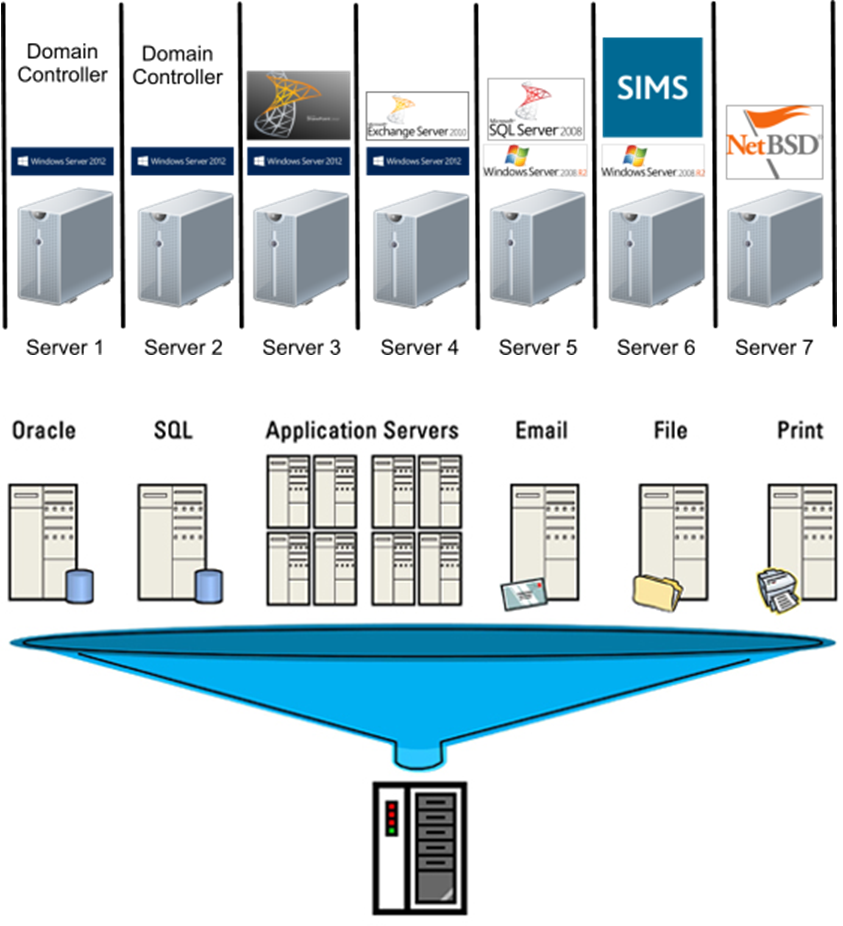
La virtualisation est une technologie qui permet de créer des représentations virtuelles de ressources informatiques physiques telles que les serveurs, le stockage, les réseaux ou les systèmes d'exploitation. Elle permet à plusieurs systèmes virtuels de partager et d'utiliser efficacement les ressources d'un seul système physique.
¶ Principes de base
¶ Abstraction des ressources
La virtualisation crée une couche d'abstraction entre le matériel physique et les systèmes d'exploitation, permettant :
- Isolation : Chaque machine virtuelle (VM) fonctionne indépendamment
- Encapsulation : L'état complet d'une VM est contenu dans des fichiers
- Portabilité : Les VM peuvent être déplacées entre différents hôtes
- Partage des ressources : Optimisation de l'utilisation du matériel
¶ Avantages principaux
Économiques :
- Réduction des coûts matériel (consolidation serveurs)
- Diminution de la consommation électrique
- Optimisation de l'espace datacenter
- ROI amélioré sur investissements IT
Opérationnels :
- Déploiement rapide de nouveaux serveurs
- Sauvegarde et restauration simplifiées
- Tests et développement facilités
- Maintenance sans interruption de service
Stratégiques :
- Agilité business améliorée
- Préparation au cloud computing
- Disaster recovery simplifié
- Évolutivité selon les besoins
¶ 2. Types de virtualisation
¶ 2.1 Virtualisation de serveurs
¶ Hyperviseurs Type 1 (Bare Metal)
Définition : S'exécutent directement sur le matériel physique
Caractéristiques :
- Performance maximale (accès direct au hardware)
- Overhead minimal
- Sécurité renforcée (surface d'attaque réduite)
- Destinés aux environnements de production
Exemples :
- VMware vSphere/ESXi : Leader du marché enterprise
- Microsoft Hyper-V : Intégré à Windows Server
- Citrix XenServer : Forte présence enterprise
- KVM : Open source, intégré Linux
- Proxmox VE : Solution open source complète
¶ Hyperviseurs Type 2 (Hosted)
Définition : S'exécutent sur un OS hôte existant
Caractéristiques :
- Installation simple sur OS standard
- Idéal pour développement et tests
- Performance moindre (overhead OS hôte)
- Gestion simplifiée pour petits environnements
Exemples :
- VMware Workstation Pro : Référence desktop
- Oracle VirtualBox : Gratuit, multi-plateforme
- Parallels Desktop : Spécialisé macOS
- QEMU : Émulation et virtualisation open source

¶ 2.2 Virtualisation de stockage
¶ Storage Area Network (SAN) virtualisé
- IBM SVC : Virtualisation block storage enterprise
- NetApp ONTAP : Unified storage avec virtualisation
- Dell EMC VPLEX : Fédération de stockage
- VMware vSAN : Software-defined storage
¶ Software-Defined Storage (SDS)
- Ceph : Storage distribué open source
- GlusterFS : File system distribué
- Windows Storage Spaces Direct : SDS Microsoft
- Nutanix : Infrastructure hyperconvergée
¶ 2.3 Virtualisation réseau
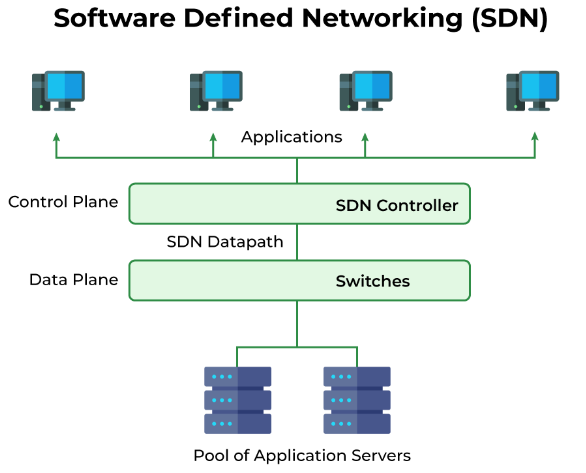
¶ Software-Defined Networking (SDN)
Principe : Séparation du plan de contrôle et du plan de données
Solutions principales :
- VMware NSX : Micro-segmentation et sécurité réseau
- Cisco ACI : Application Centric Infrastructure
- OpenStack Neutron : SDN open source
- Azure Virtual Network : SDN cloud Microsoft
¶ Network Function Virtualization (NFV)
- Firewalls virtualisés : pfSense, FortiGate-VM, Cisco ASAv
- Load balancers : F5 BIG-IP VE, HAProxy, Nginx
- WAN optimization : Silver Peak, Riverbed SteelHead
¶ 2.4 Virtualisation de postes de travail
¶ Virtual Desktop Infrastructure (VDI)
Principe : Exécution des postes de travail sur serveurs centralisés
Solutions leader :
- VMware Horizon : Suite VDI complète enterprise
- Citrix Virtual Apps and Desktops : Leader historique
- Microsoft WVD/AVD : Azure Virtual Desktop cloud-native
- Parallels RAS : Solution SMB cost-effective
¶ Desktop as a Service (DaaS)
- Amazon WorkSpaces : VDI managed AWS
- Microsoft Azure Virtual Desktop : Intégration Office 365
- Google Cloud Virtualization : Chrome Enterprise
¶ 3. Technologies de virtualisation détaillées
¶ 3.1 Architecture des hyperviseurs
¶ VMware vSphere Architecture
┌─────────────────────────────────────────┐
│         Management Layer             │
│  ┌─────────────┐  ┌─────────────────┐   │
│  │ vCenter     │  │ Web Client   │   │
│  │ Server      │  │ (HTML5)      │   │
│  └─────────────┘  └─────────────────┘   │
└─────────────────────────────────────────┘
┌─────────────────────────────────────────┐
│         ESXi Hosts                   │
│  ┌──────────┐ ┌──────────┐ ┌──────────┐ │
│  │VM1 VM2   │ │VM3 VM4   │ │VM5 VM6 │ │
│  │          │ │          │ │        │ │
│  │ ESXi     │ │ ESXi     │ │ ESXi   │ │
│  │ Host 1   │ │ Host 2   │ │ Host 3 │ │
│  └──────────┘ └──────────┘ └──────────┘ │
└─────────────────────────────────────────┘
┌─────────────────────────────────────────┐
│         Storage Layer                │
│  ┌─────────────┐  ┌─────────────────┐   │
│  │ VMFS        │  │ vSAN          │   │
│  │ Datastore   │  │ (HCI)         │   │
│  └─────────────┘  └─────────────────┘   │
└─────────────────────────────────────────┘
Composants clés :
- ESXi : Hyperviseur bare-metal
- vCenter Server : Gestion centralisée
- vMotion : Migration à chaud des VM
- DRS : Distribution automatique des ressources
- HA : High Availability automatique
- vSAN : Storage software-defined
¶ Microsoft Hyper-V Architecture
┌─────────────────────────────────────────┐
│    System Center Virtual Machine     │
│           Manager (SCVMM)            │
└─────────────────────────────────────────┘
┌─────────────────────────────────────────┐
│         Hyper-V Hosts                │
│  ┌──────────────────────────────────┐   │
│  │  Virtual Machines             │   │
│  │  ┌─────┐ ┌─────┐ ┌─────┐ ┌─────┐│   │
│  │  │VM1  │ │VM2  │ │VM3 │ │VM4 ││   │
│  │  └─────┘ └─────┘ └─────┘ └─────┘│   │
│  │                               │   │
│  │      Hyper-V Hypervisor       │   │
│  │                               │   │
│  │      Windows Server 2022      │   │
│  └──────────────────────────────────┘   │
└─────────────────────────────────────────┘
┌─────────────────────────────────────────┐
│         Storage Options              │
│  ┌─────────────┐  ┌─────────────────┐   │
│  │ SMB 3.0     │  │ Storage Spaces│   │
│  │ Shares      │  │ Direct (S2D)  │   │
│  └─────────────┘  └─────────────────┘   │
└─────────────────────────────────────────┘
¶ 3.2 Techniques de virtualisation CPU
¶ Virtualisation assistée par hardware
Intel VT-x (Virtualization Technology) :
- VMX root mode : Hyperviseur s'exécute avec privilèges complets
- VMX non-root mode : VM s'exécutent en mode restreint
- VMCS : Virtual Machine Control Structure pour chaque VM
- EPT : Extended Page Tables pour virtualisation mémoire
AMD-V (AMD Virtualization) :
- SVM : Secure Virtual Machine extensions
- VMCB : Virtual Machine Control Block
- NPT : Nested Page Tables (équivalent EPT)
- ASID : Address Space Identifier
¶ Paravirtualisation
Principe : L'OS invité est modifié pour coopérer avec l'hyperviseur
Avantages :
- Performance supérieure (moins d'overhead)
- Accès direct optimisé aux ressources
- Réduction des VM exits coûteuses
Inconvénients :
- Nécessite modification de l'OS invité
- Compatibilité limitée aux OS supportés
Exemples :
- Xen : Pionnier de la paravirtualisation
- VMware Tools : Drivers paravirtualisés
- Hyper-V Integration Services : Optimisations Hyper-V
¶ 3.3 Gestion de la mémoire virtuelle
¶ Techniques d'optimisation mémoire
Memory Overcommitment :
Principe : Allouer plus de mémoire virtuelle que physique disponible

Exemple :
- Serveur physique : 64 GB RAM
- VM1 : 16 GB alloués
- VM2 : 16 GB alloués
- VM3 : 16 GB alloués
- VM4 : 16 GB alloués
- Total alloué : 64 GB (ratio 1:1)
- Overcommit possible : jusqu'à 128 GB (ratio 2:1)
VMware Memory Management :
- Transparent Page Sharing (TPS) : Déduplication pages identiques
- Ballooning : Récupération mémoire via driver guest
- Compression : Compression pages mémoire peu utilisées
- Swapping : Utilisation stockage pour débordement mémoire
Microsoft Dynamic Memory (Hyper-V) :
- Startup RAM : Mémoire minimum au démarrage
- Maximum RAM : Limite supérieure dynamique
- Memory buffer : Réserve pour pics de charge
- Memory weight : Priorité relative entre VM
¶ 4. Solutions de virtualisation par segment
¶ 4.1 Segment Enterprise
¶ VMware vSphere 8.0
Éditions disponibles :
- vSphere Essentials : Jusqu'à 3 hôtes, fonctions de base
- vSphere Standard : Fonctions avancées, vMotion
- vSphere Enterprise Plus : Toutes fonctions, DRS, HA avancé
Fonctionnalités clés :
# Exemple commandes PowerCLI VMware
Connect-VIServer -Server vcenter.company.com

# Migration à chaud VM
Move-VM -VM "WebServer01" -Destination (Get-VMHost "esxi-02.company.com")

# Configuration DRS cluster
New-Cluster -Name "Production-Cluster" -DrsEnabled:$true -HAEnabled:$true

# vMotion storage
Move-VM -VM "Database01" -Datastore "SAN-Datastore-02"
Pricing model :
- Licensing par socket CPU physique
- Support et subscription (SnS) obligatoire
- Coût : 3 000-6 000$ par socket selon édition
¶ Microsoft Hyper-V 2022
Éditions Windows Server :
- Essentials : Pas de virtualisation
- Standard : 2 VM incluses dans la licence
- Datacenter : VM illimitées sur l'hôte
Fonctionnalités avancées :
# Commandes PowerShell Hyper-V
Import-Module Hyper-V

# Création VM
New-VM -Name "WebApp01" -MemoryStartupBytes 4GB -VHDPath "C:\VMs\WebApp01.vhdx"

# Live Migration
Move-VM -Name "WebApp01" -DestinationHost "HV-Host02"

# Réplication Hyper-V
Enable-VMReplication -VMName "CriticalApp" -ReplicaServerName "DR-Server" -ReplicaServerPort 80 -AuthenticationType Kerberos
Avantages compétitifs :
- Coût licensing : Inclus dans Windows Server
- Integration Windows : Active Directory, DNS, DHCP
- Azure integration : Azure Site Recovery, Azure Backup
¶ 4.2 Segment Open Source
¶ KVM (Kernel-based Virtual Machine)
Architecture Linux native :
# Vérification support virtualisation
egrep -c '(vmx|svm)' /proc/cpuinfo
lscpu | grep Virtualization

# Installation KVM CentOS/RHEL
yum install qemu-kvm libvirt libvirt-python libguestfs-tools virt-install

# Création VM
virt-install \
  --name centos8-vm \
  --ram 2048 \
  --disk path=/var/lib/libvirt/images/centos8.qcow2,size=20 \
  --vcpus 2 \
  --os-type linux \
  --network bridge=br0 \
  --graphics none \
  --console pty,target_type=serial \
  --location 'http://mirror.centos.org/centos/8/BaseOS/x86_64/os/' \
  --extra-args 'console=ttyS0,115200n8 serial'
Outils de gestion :
- libvirt : API gestion virtualisation
- virt-manager : Interface graphique
- oVirt : Plateforme enterprise (Red Hat)
- Proxmox VE : Distribution complète
¶ Proxmox Virtual Environment
Stack technologique :
- Debian Linux : OS de base
- KVM : Virtualisation complète
- LXC : Containers Linux
- Ceph : Stockage distribué intégré
- ZFS : File system avancé
Interface web complète :
// Exemple API REST Proxmox
curl -k -d 'username=root@pam&password=yourpassword' \
  https://proxmox-server:8006/api2/json/access/ticket

// Création VM via API
curl -k -H "Authorization: PVEAuthCookie=..." \
  -d 'vmid=101&name=test-vm&memory=1024&cores=2' \
  https://proxmox-server:8006/api2/json/nodes/proxmox/qemu
¶ 4.3 Solutions Cloud-native
¶ AWS EC2 (Elastic Compute Cloud)
Types d'instances spécialisées :
- Bare Metal : i3.metal, m5.metal (accès hardware direct)
- Nitro System : Hyperviseur custom AWS
- Spot Instances : Pricing variable selon demande
# AWS CLI - Lancement instance
aws ec2 run-instances \
  --image-id ami-0abcdef1234567890 \
  --instance-type t3.micro \
  --key-name my-key-pair \
  --security-group-ids sg-903004f8 \
  --subnet-id subnet-6e7f829e
¶ Microsoft Azure Virtual Machines
Séries d'instances :
- General Purpose : B, D, A séries
- Compute Optimized : F série (ratio CPU/mémoire élevé)
- Memory Optimized : E, M séries (applications en mémoire)
- GPU : N série (machine learning, rendering)
# Azure PowerShell - Création VM
New-AzVm -ResourceGroupName "myResourceGroup" -Name "myVM" -Location "East US" -VirtualNetworkName "myVnet" -SubnetName "mySubnet" -SecurityGroupName "myNetworkSecurityGroup" -PublicIpAddressName "myPublicIpAddress" -OpenPorts 80,3389
¶ 5. Technologies émergentes et tendances
¶ 5.1 Infrastructure Hyperconvergée (HCI)
¶ Concept et architecture
Principe : Intégration compute, storage et réseau dans appliances unifiées
Traditional Infrastructure:
┌─────────────┐  ┌─────────────┐  ┌─────────────┐
│   Compute   │ │   Storage  │  │   Network  │
│   Servers   │ │     SAN    │  │   Switches │
│             │ │            │  │            │
└─────────────┘  └─────────────┘  └─────────────┘

HCI Infrastructure:
┌─────────────────────────────────────────────────┐
│              HCI Node 1                     │
│  ┌─────────┐ ┌─────────┐ ┌─────────────────────┐│
│  │Compute  │ │Software│ │      Network      ││
│  │  VMs    │ │Defined │ │   (SDN/vSwitch)   ││
│  │         │ │Storage │ │                   ││
│  └─────────┘ └─────────┘ └─────────────────────┘│
└─────────────────────────────────────────────────┘
¶ Solutions HCI leaders
Nutanix :
- Acropolis : Hyperviseur intégré
- Prism : Management unifié
- AHV : Hyperviseur built-in gratuit
- Coût : 10 000-25 000$ par nœud
VMware vSAN :
- Intégration native vSphere
- Policy-based management
- Support hardware étendu
- Coût : 2 500$ par socket + vSphere
Microsoft Storage Spaces Direct :
- Intégré Windows Server Datacenter
- Scale-out file server
- Support Hyper-V native
- Inclus dans licensing Datacenter
¶ 5.2 Containers vs Virtual Machines
¶ Comparaison architecturale
Virtual Machines:                    Containers:
┌─────────────────────────┐         ┌─────────────────────────┐
│       Application     │         │       Application     │
├─────────────────────────┤         ├─────────────────────────┤
│        Guest OS       │         │      Container        │
├─────────────────────────┤         ├─────────────────────────┤
│      Hypervisor       │         │   Container Runtime   │
├─────────────────────────┤         ├─────────────────────────┤
│        Host OS        │         │        Host OS        │
├─────────────────────────┤         ├─────────────────────────┤
│       Hardware        │         │       Hardware        │
└─────────────────────────┘         └─────────────────────────┘
¶ Technologies containers
Docker :
# Exemple Dockerfile
FROM ubuntu:20.04
RUN apt-get update && apt-get install -y nginx
COPY index.html /var/www/html/
EXPOSE 80
CMD ["nginx", "-g", "daemon off;"]

# Build et run
docker build -t my-web-app .
docker run -p 8080:80 my-web-app
Kubernetes :
# Deployment YAML
apiVersion: apps/v1
kind: Deployment
metadata:
  name: web-app
spec:
  replicas: 3
  selector:
    matchLabels:
      app: web-app
  template:
    metadata:
      labels:
        app: web-app
    spec:
      containers:
      - name: web-app
        image: my-web-app:latest
        ports:
        - containerPort: 80
¶ 5.3 Edge Computing et virtualisation
¶ Challenges edge
- Latence ultra-faible : <1ms pour IoT critique
- Ressources limitées : CPU, mémoire, stockage restreints
- Gestion distribuée : Milliers de sites edge
- Connectivité intermittente : Résilience réseau
¶ Solutions spécialisées
VMware Edge Compute Stack :
- vSphere optimisé pour edge
- Gestion centralisée via cloud
- Profil matériel réduit
Microsoft Azure Stack Edge :
- Appliance edge Microsoft
- Services Azure en local
- AI/ML à la edge
Red Hat OpenShift Edge :
- Kubernetes pour edge computing
- Gestion unifiée multi-sites
- Applications cloud-native
¶ 6. Sélection et dimensionnement
¶ 6.1 Critères de choix solution
¶ Matrice de décision
| Critère | Poids | VMware | Hyper-V | KVM/Proxmox | Cloud |
|---|---|---|---|---|---|
| Coût initial | 20% | 6/10 | 8/10 | 10/10 | 9/10 |
| Performance | 25% | 10/10 | 9/10 | 8/10 | 8/10 |
| Écosystème | 15% | 10/10 | 8/10 | 6/10 | 9/10 |
| Support | 15% | 9/10 | 9/10 | 6/10 | 8/10 |
| Évolutivité | 15% | 9/10 | 8/10 | 8/10 | 10/10 |
| Compétences équipe | 10% | Variable selon contexte |
¶ Cas d'usage typiques
Choisir VMware si :
- Budget confortable (> 100 000$)
- Environnement critique mission-critical
- Écosystème multi-vendor complexe
- Équipe spécialisée disponible
Choisir Hyper-V si :
- Infrastructure Microsoft existante
- Budget modéré à élevé
- Intégration Active Directory critique
- Roadmap Azure envisagée
Choisir Open Source si :
- Budget serré
- Équipe Linux expérimentée
- Flexibilité maximale requise
- Éviter vendor lock-in
¶ 6.2 Dimensionnement infrastructure
¶ Calcul des ressources
CPU Sizing :
Méthode conservative :
- Ratio vCPU:pCPU = 2:1 (workloads normaux)
- Ratio vCPU:pCPU = 4:1 (workloads légers)
- Réserver 10-20% pour hyperviseur

Exemple :
- Serveur : 2× Intel Xeon 6248 (20 cœurs chacun) = 40 cœurs
- vCPU disponibles : 40 × 2 = 80 vCPU (ratio 2:1)
- Réservé hyperviseur : 8 vCPU
- vCPU allouables : 72 vCPU
Memory Sizing :
Formule :
RAM_Total = RAM_VMs + RAM_Hypervisor + Buffer

Exemple :
- VM1: 8 GB, VM2: 16 GB, VM3: 8 GB, VM4: 4 GB = 36 GB
- Hypervisor overhead: 4 GB
- Buffer (20%): 8 GB
- RAM physique nécessaire: 48 GB
Storage Sizing :
IOPS Planning :
- OS disk: 50-100 IOPS par VM
- Data disk: 200-500 IOPS par VM (selon usage)
- Database: 1000+ IOPS par instance

Exemple 10 VM standard :
- IOPS required: 10 × 150 = 1,500 IOPS
- With growth (50%): 2,250 IOPS
- Storage tier: SSD (10,000+ IOPS disponibles)
¶ 7. Bonnes pratiques et optimisation
¶ 7.1 Design patterns
¶ Cluster Design
3-Node Minimum :
Cluster Configuration:
Node1 ←→ Node2 ←→ Node3
  ↑         ↑         ↑
  └─────────┴─────────┘

Benefits:
- Fault tolerance: 1 node failure
- Load distribution: 33% per node
- Maintenance: Rolling updates possible
Storage Design :
- Tier 1 : SSD/NVMe pour workloads critiques
- Tier 2 : SAS 10K pour applications standard
- Tier 3 : SATA/Cloud pour archivage
- Backup : Dedupe + compression + offsite
¶ Network Design
VLAN Segmentation :
Management Network: VLAN 10 (192.168.10.0/24)
- Hypervisor management
- vCenter, SCVMM access
- Backup network traffic

Production Network: VLAN 20 (192.168.20.0/24)
- Production VM traffic
- User application access
- Inter-VM communication

Storage Network: VLAN 30 (192.168.30.0/24)
- iSCSI, NFS traffic
- vMotion, Live Migration
- Replication traffic

DMZ Network: VLAN 40 (10.0.40.0/24)
- Internet-facing services
- Web servers, email
- Restricted access
¶ 7.2 Performance tuning
¶ VM Optimization
CPU Configuration :
# VMware - Réservation CPU
$vm = Get-VM "ProductionDB"
$spec = New-Object VMware.Vim.VirtualMachineConfigSpec
$spec.CpuAllocation = New-Object VMware.Vim.ResourceAllocationInfo
$spec.CpuAllocation.Reservation = 2000 # MHz réservés
$vm.ExtensionData.ReconfigVM($spec)
Memory Optimization :
# Hyper-V - Dynamic Memory
Set-VMMemory -VMName "WebServer01" -DynamicMemoryEnabled $true -MinimumBytes 1GB -StartupBytes 2GB -MaximumBytes 8GB -Buffer 20
Storage Performance :
- Queue depth : 32-64 pour SSD
- Block size : 4K pour random I/O, 64K pour sequential
- Cache mode : Write-back pour performance
¶ 7.3 Monitoring et alerting
¶ Métriques clés
Host-level metrics :
- CPU Ready Time : < 5% (temps d'attente vCPU)
- Memory Ballooning : < 1% (pressure mémoire)
- Network Throughput : < 80% capacity
- Storage Latency : < 20ms average
VM-level metrics :
- CPU Utilization : Pic vs moyenne
- Memory Active : Mémoire réellement utilisée
- Disk IOPS : Compared to baseline
- Network Packets : Error rate < 0.1%
¶ Outils monitoring
VMware vRealize Operations :
// Exemple alert vROps
{
  "alertName": "High CPU Ready Time",
  "metric": "cpu.ready.summation",
  "threshold": 5,
  "duration": 300,
  "actions": ["email", "snmp_trap"]
}
System Center Operations Manager :
# SCOM PowerShell - Custom monitor
Import-Module OperationsManager
$class = Get-SCOMClass -Name "Microsoft.Windows.Server.Computer"
$monitor = Get-SCOMMonitor -Name "Microsoft.Windows.Server.CPUUtilization"
¶ 8. Sécurité et compliance
¶ 8.1 Hardening hyperviseurs
¶ VMware ESXi Security
Configuration lockdown :
# ESXi Shell commands
# Disable unnecessary services
chkconfig ntpd on
chkconfig ssh off
chkconfig sfcbd-watchdog off

# Network security
esxcli network firewall ruleset set --ruleset-id=syslog --enabled=false
esxcli network firewall ruleset set --ruleset-id=snmp --enabled=false

# VM encryption
vim-cmd vmsvc/encrypt.create 1 2>/dev/null
vSphere Hardening Guide :
- BIOS Settings : Enable VT-x, disable unused ports
- Network : VLAN isolation, port security
- Storage : LUN masking, CHAP authentication
- Certificates : Custom CA, certificate replacement
¶ Hyper-V Security
Shielded VMs :
# Enable Shielded VM
Enable-VMIntegrationService -VMName "SecureVM" -Name "Key-Value Pair Exchange"
Set-VMSecurity -VMName "SecureVM" -EncryptStateAndVmMigrationTraffic $true -VirtualizationBasedSecurityOptOut $false
Credential Guard :
- Protection credentials Windows
- Hardware-based isolation
- Protection contre Pass-the-Hash attacks
¶ 8.2 Micro-segmentation
¶ NSX Micro-segmentation
{
  "firewall_rules": [
    {
      "name": "Web-to-App-Tier",
      "source": "Web-Security-Group",
      "destination": "App-Security-Group",
      "service": "HTTPS",
      "action": "ALLOW"
    },
    {
      "name": "Default-Deny",
      "source": "ANY",
      "destination": "ANY",
      "service": "ANY",
      "action": "DENY"
    }
  ]
}
¶ Azure Network Security Groups
{
  "securityRules": [
    {
      "name": "Allow-HTTP-Inbound",
      "protocol": "Tcp",
      "sourcePortRange": "*",
      "destinationPortRange": "80",
      "sourceAddressPrefix": "Internet",
      "destinationAddressPrefix": "VirtualNetwork",
      "access": "Allow",
      "priority": 100,
      "direction": "Inbound"
    },
    {
      "name": "Deny-All-Inbound",
      "protocol": "*",
      "sourcePortRange": "*",
      "destinationPortRange": "*",
      "sourceAddressPrefix": "*",
      "destinationAddressPrefix": "*",
      "access": "Deny",
      "priority": 4000,
      "direction": "Inbound"
    }
  ]
}
¶ 8.3 Compliance et audit
¶ Standards de compliance
NIST Cybersecurity Framework :
- Identify : Asset inventory et risk assessment
- Protect : Access controls et data protection
- Detect : Monitoring et anomaly detection
- Respond : Incident response procedures
- Recover : Recovery planning et improvements
ISO 27001 Controls :
A.12.6.1 - Management of technical vulnerabilities
- Regular vulnerability scanning
- Patch management procedures
- Vulnerability assessment reports

A.13.1.1 - Network controls
- Network segmentation implemented
- DMZ for internet-facing services
- Network monitoring and logging
¶ Audit et logging
VMware vCenter Logs :
# Log locations ESXi
/var/log/vmware/vpxd.log          # vCenter Server
/var/log/vmware/vmware-vum.log    # Update Manager
/var/log/vmkernel.log             # VMkernel events
/var/log/vmkwarning.log           # VMkernel warnings

# Syslog configuration
esxcli system syslog config set --loghost='syslog.company.com:514'
esxcli system syslog reload
Windows Event Logs :
# Hyper-V specific events
Get-WinEvent -LogName "Microsoft-Windows-Hyper-V-VMMS-Admin"
Get-WinEvent -LogName "Microsoft-Windows-Hyper-V-Worker-Admin"

# Security events
Get-WinEvent -FilterHashtable @{LogName='Security'; ID=4624,4625} | Select TimeCreated, Id, LevelDisplayName, Message
¶ 9. Planification de capacité et croissance
¶ 9.1 Capacity Planning
¶ Méthodologie de planification
Collecte des métriques baseline :
# Script PowerShell - Collecte métriques VMware
Connect-VIServer -Server vcenter.company.com

$report = @()
foreach ($vm in Get-VM) {
    $stats = Get-Stat -Entity $vm -Stat "cpu.usage.average","mem.usage.average" -Start (Get-Date).AddDays(-30)
    $report += [PSCustomObject]@{
        VMName = $vm.Name
        AvgCPU = ($stats | Where{$_.MetricId -eq "cpu.usage.average"} | Measure-Object Value -Average).Average
        AvgMemory = ($stats | Where{$_.MetricId -eq "mem.usage.average"} | Measure-Object Value -Average).Average
        MaxCPU = ($stats | Where{$_.MetricId -eq "cpu.usage.average"} | Measure-Object Value -Maximum).Maximum
    }
}
$report | Export-Csv "capacity-baseline.csv"
Modèles de croissance :
# Python - Prédiction croissance linéaire
import pandas as pd
import numpy as np
from sklearn.linear_model import LinearRegression

# Load historical data
data = pd.read_csv('capacity-baseline.csv')
data['Month'] = pd.to_datetime(data['Date']).dt.month

# Predict next 12 months
model = LinearRegression()
X = data[['Month']].values
y = data['CPUUsage'].values
model.fit(X, y)

future_months = np.array([[13], [14], [15], [16], [17], [18]])
predictions = model.predict(future_months)
print("Predicted CPU growth:", predictions)
¶ Seuils et alertes
Thresholds recommandés :
# Capacity thresholds YAML
cpu_thresholds:
  warning: 70%    # Planifier ajout ressources
  critical: 85%   # Action immédiate requise

memory_thresholds:
  warning: 75%
  critical: 90%

storage_thresholds:
  warning: 80%
  critical: 95%

network_thresholds:
  warning: 70%
  critical: 85%
¶ 9.2 Scale-out strategies
¶ Horizontal Scaling
Cluster expansion :
# VMware - Ajout host au cluster
# 1. Prepare new ESXi host
esxcli system settings advanced set -o /Net/FollowHardwareMac -i 1

# 2. Add to vCenter via PowerCLI
Add-VMHost -Name "esxi-04.company.com" -Location "Production-Cluster" -User root -Password "password"

# 3. Configure networking and storage
$vmhost = Get-VMHost "esxi-04.company.com"
$vswitch = New-VirtualSwitch -VMHost $vmhost -Name "vSwitch1"
New-VirtualPortGroup -VirtualSwitch $vswitch -Name "Production"
Load balancing automatique :
- VMware DRS : Distribution automatique workloads
- Hyper-V Dynamic Optimization : Load balancing intelligent
- Cluster-aware applications : SQL Always On, Oracle RAC
¶ Vertical Scaling
Hot-add resources :
# VMware - Hot add CPU/Memory
$vm = Get-VM "DatabaseServer"
Set-VM -VM $vm -MemoryGB 16 -NumCpu 4 -Confirm:$false

# Hyper-V - Dynamic Memory adjustment
Set-VMMemory -VMName "WebApp01" -DynamicMemoryEnabled $true -MaximumBytes 8GB
¶ 10. Migration et transformation
¶ 10.1 Stratégies de migration
¶ P2V (Physical-to-Virtual)
VMware vCenter Converter :
# Converter Standalone command line
vmware-converter-sa.exe CLONE -s "source-server.company.com" -u administrator -p password -d vi://vcenter.company.com/datacenter/cluster -dm "datastore1" --diskMode THIN
Hyper-V Migration :
# System Center Virtual Machine Manager
$Job = New-SCVirtualMachine -Name "MigratedServer" -VMHost $VMHost -Path $VMPath -SourcePhysicalComputer $PhysicalComputer
¶ V2V (Virtual-to-Virtual)
Cross-platform migrations :
- VMware to Hyper-V : Microsoft Virtual Machine Converter
- Hyper-V to VMware : StarWind V2V Converter
- AWS Migration : AWS Server Migration Service
- Azure Migrate : Azure Site Recovery
¶ Migration planning
Assessment phase :
# Migration assessment template
applications:
  - name: "Web Server"
    complexity: "Low"
    dependencies: ["Database", "File Server"]
    downtime_tolerance: "2 hours"
    migration_method: "Live migration"

  - name: "Legacy Application"
    complexity: "High"
    dependencies: ["Specific hardware", "Old OS"]
    downtime_tolerance: "8 hours"
    migration_method: "P2V with testing"
¶ 10.2 Disaster Recovery
¶ Site-to-site replication
VMware Site Recovery Manager :
# SRM PowerCLI commands
Connect-SrmServer -SrmServerAddress "srm.company.com"

# Create protection group
$ProtectionGroup = New-SrmProtectionGroup -Name "Web-Tier-PG" -Type "san" -DataStore $datastore

# Recovery plan
$RecoveryPlan = New-SrmRecoveryPlan -Name "DR-Plan-WebTier" -ProtectionGroup $ProtectionGroup
Hyper-V Replica :
# Enable Hyper-V Replica
Enable-VMReplication -VMName "CriticalApp" -ReplicaServerName "DR-HyperV.company.com" -ReplicaServerPort 443 -AuthenticationType Certificate -CertificateThumbprint "thumbprint"

# Test failover
Start-VMFailover -VMName "CriticalApp" -AsTest -Confirm:$false
¶ RTO/RPO targets
Service tier classification :
Tier 1 (Mission Critical):
- RTO: < 1 hour
- RPO: < 15 minutes
- Solution: Synchronous replication + automated failover
- Examples: Payment systems, ERP core

Tier 2 (Business Critical):
- RTO: < 4 hours
- RPO: < 1 hour
- Solution: Asynchronous replication + manual failover
- Examples: CRM, HR systems

Tier 3 (Standard):
- RTO: < 24 hours
- RPO: < 8 hours
- Solution: Backup-based recovery
- Examples: File servers, development systems
¶ 11. Coûts et optimisation financière
¶ 11.1 Modèles de coûts
¶ CAPEX vs OPEX
Traditional On-Premise (CAPEX) :
Year 0: Hardware + Software licenses + Implementation
- Servers: $150,000
- VMware licenses: $75,000
- Storage: $100,000
- Network: $25,000
- Implementation: $50,000
Total Year 0: $400,000

Yearly OPEX:
- Maintenance: $60,000/year
- Power/Cooling: $15,000/year
- Support: $25,000/year
Total OPEX: $100,000/year
Cloud (OPEX) :
Monthly costs:
- Compute (20 VMs): $8,000/month
- Storage (50TB): $2,500/month
- Network: $1,000/month
- Backup: $800/month
Total monthly: $12,300
Total yearly: $147,600

3-year total: $442,800
¶ TCO Analysis
5-year TCO comparison :
# TCO Calculator Python
def calculate_tco(scenario, years=5):
    if scenario == "on_premise":
        capex = 400000  # Year 0
        opex_annual = 100000
        refresh_cost = 200000  # Year 3 partial refresh
        return capex + (opex_annual * years) + refresh_cost

    elif scenario == "cloud":
        opex_annual = 147600
        growth_rate = 1.15  # 15% annual growth
        total = 0
        for year in range(years):
            total += opex_annual * (growth_rate ** year)
        return total

on_prem_tco = calculate_tco("on_premise")  # $900,000
cloud_tco = calculate_tco("cloud")         # $970,000
print(f"On-premise TCO: ${on_prem_tco:,}")
print(f"Cloud TCO: ${cloud_tco:,}")
¶ 11.2 Optimisation des coûts
¶ Right-sizing recommendations
Automated rightsizing :
# VMware vRealize Operations - Rightsizing
$recommendations = Get-OMResource -ResourceKind "VirtualMachine" | Get-OMStat -Key "rightsizing|vcpu_recommended"

foreach ($rec in $recommendations) {
    if ($rec.Value -lt $rec.CurrentValue) {
        Write-Host "VM $($rec.ResourceName) can reduce vCPU from $($rec.CurrentValue) to $($rec.Value)"
    }
}
¶ License optimization
VMware licensing strategies :
- vSphere Standard : Basic features, lower cost
- vSphere Enterprise Plus : Advanced features si justifiées
- vCloud Suite : Bundle pricing pour features étendues
Microsoft licensing :
Windows Server Datacenter benefits:
- Unlimited VMs sur le serveur physique
- Software Assurance inclus
- Azure Hybrid Rights

Calcul break-even:
Standard: $972 per core (2 VMs included)
Datacenter: $6,155 per core (unlimited VMs)
Break-even: 6,155 / 972 = 6.3 VMs per core
¶ Cloud cost optimization
Reserved Instances :
# AWS Reserved Instances
aws ec2 describe-reserved-instances-offerings --instance-type m5.large --product-description Linux/UNIX

# Savings comparison
On-Demand: $0.096/hour × 8760 hours = $841/year
1-Year Reserved: $0.057/hour × 8760 hours = $499/year
Savings: 41%
Azure Cost Management :
# Azure PowerShell - Cost analysis
Get-AzConsumptionUsageDetail -StartDate "2023-01-01" -EndDate "2023-01-31" |
    Group-Object ResourceGroup |
    Select Name, @{Name="TotalCost"; Expression={($_.Group | Measure-Object -Property Cost -Sum).Sum}}
¶ 12. Études de cas pratiques
¶ 12.1 Cas PME : Migration infrastructure legacy
Contexte :
- Entreprise : Cabinet comptable 150 employés
- Infrastructure actuelle : 8 serveurs physiques (5-8 ans)
- Applications : Sage, Exchange, file servers
- Budget : 75 000$ CAD
Architecture recommandée :
Solution: Proxmox VE + NAS Synology
┌─────────────────────────────────────────┐
│            Proxmox Cluster           │
│  ┌─────────────┐    ┌─────────────┐     │
│  │ Node 1      │    │ Node 2    │     │
│  │ Dell R440   │    │ Dell R440 │     │
│  │ 32GB RAM    │    │ 32GB RAM  │     │
│  │ 2×SSD 1TB   │    │ 2×SSD 1TB │     │
│  └─────────────┘    └─────────────┘     │
└─────────────────────────────────────────┘
┌─────────────────────────────────────────┐
│          Synology NAS DS1821+        │
│              8×4TB RAID6             │
│           (iSCSI + NFS)              │
└─────────────────────────────────────────┘
VM Distribution :
- Sage Server : 4 vCPU, 8GB RAM, 200GB disk
- Exchange 2019 : 4 vCPU, 16GB RAM, 500GB disk
- File Server : 2 vCPU, 4GB RAM, 2TB disk
- Domain Controller : 2 vCPU, 4GB RAM, 80GB disk
- Backup Server : 2 vCPU, 8GB RAM, 4TB disk
Coûts détaillés :
Hardware:
- 2× Dell PowerEdge R440: $15,000
- Synology DS1821+ + disks: $8,000
- Network switch: $2,000
- UPS: $3,000

Software:
- Proxmox (gratuit): $0
- Windows Server licenses: $12,000
- Exchange license: $8,000

Services:
- Installation/migration: $15,000
- Formation: $3,000

Total: $66,000 (sous budget)
¶ 12.2 Cas Enterprise : Transformation datacenter
Contexte :
- Entreprise : Manufacturier 2000 employés
- Infrastructure : 150 serveurs physiques, 3 sites
- Objectif : Consolidation + cloud hybride
- Budget : 1.2M$ sur 3 ans
Architecture cible :
Site Principal (Toronto):
VMware vSphere 8.0 Enterprise Plus
├── Cluster Production (8 hosts)
│   ├── Dell EMC VxRail (HCI)
│   ├── 200 VMs production
│   └── vSAN storage (100TB)
├── Cluster Development (4 hosts)
│   ├── Dell PowerEdge R740
│   ├── 80 VMs dev/test
│   └── Traditional SAN storage
└── Management
    ├── vCenter Server Appliance
    ├── vRealize Operations
    └── Site Recovery Manager

Site Secondaire (Vancouver):
├── DR cluster (4 hosts)
├── Veeam Backup & Replication
└── Cold standby infrastructure

Azure Integration:
├── ExpressRoute (1Gbps)
├── Azure Site Recovery
├── Azure Backup (long term)
└── Dev/Test workloads
Phases de migration :
Phase 1 (Mois 1-6) : Infrastructure
- Installation clusters vSphere
- Migration 50 VM non-critiques
- Tests performance et stabilité
- Budget Phase 1 : 400 000$
Phase 2 (Mois 7-12) : Applications critiques
- Migration ERP et bases de données
- Configuration HA/DRS
- Mise en place DR
- Budget Phase 2 : 500 000$
Phase 3 (Mois 13-18) : Optimisation
- Cloud hybride Azure
- Automation et monitoring
- Décommissioning ancien matériel
- Budget Phase 3 : 300 000$
ROI réalisé :
- Réduction OPEX : 300 000$/an (électricité, maintenance)
- Gains productivité : 150 000$/an (provisioning rapide)
- Évitement coûts : 200 000$ (renouvellement matériel)
- ROI 3 ans : 65%
¶ 13. Avenir et tendances émergentes
¶ 13.1 Technologies disruptives
¶ Confidential Computing
Principe : Protection données en cours de traitement
Traditional Security:
Data at Rest: ✓ Encrypted
Data in Transit: ✓ Encrypted
Data in Use: ✗ Plain text in memory

Confidential Computing:
Data at Rest: ✓ Encrypted
Data in Transit: ✓ Encrypted
Data in Use: ✓ Encrypted in secure enclaves
Technologies :
- Intel SGX : Software Guard Extensions
- AMD Memory Guard : Secure Memory Encryption
- ARM TrustZone : Secure and non-secure worlds
- Microsoft Azure Confidential Computing : DC-series VMs
¶ Quantum-Safe Virtualization
Menaces quantiques :
- Algorithmes Shor : Casse RSA et ECC
- Timeline : 10-20 ans pour ordinateurs quantiques pratiques
- Impact : Chiffrement actuel vulnérable
Préparation :
# Post-quantum cryptography evaluation
openssl list -public-key-algorithms | grep -E "(dilithium|falcon|sphincs)"

# Quantum-safe VPN configuration
strongswan.conf:
  crypto_algorithms = "aes256-sha256-modp2048,aes256-sha256-kyber512"
¶ 13.2 Edge Computing avancé
¶ 5G et Edge
Architecture 5G Edge :
5G Network Edge Computing Stack:
┌─────────────────────────────────────┐
│        Applications              │ ← Ultra-low latency apps
├─────────────────────────────────────┤
│     Container Orchestration      │ ← Kubernetes edge
│         (K8s, OpenShift)         │
├─────────────────────────────────────┤
│    Edge Computing Platform       │ ← VMware/Azure Stack
│    (Lightweight hypervisor)      │
├─────────────────────────────────────┤
│         5G Network Functions     │ ← vRAN, UPF
│           (Virtualized)          │
├─────────────────────────────────────┤
│        Hardware Acceleration     │ ← FPGA, GPU, ASIC
│         (AI/ML inference)        │
└─────────────────────────────────────┘
Use cases critiques :
- Autonomous vehicles : <1ms latency requis
- Industrial IoT : Real-time process control
- AR/VR : Immersive experiences
- Smart cities : Traffic optimization
¶ Distributed Computing Mesh
Concept : Compute resources distribués géographiquement
- CDN-like computing : Code exécuté au plus près
- Serverless edge : Functions as a Service distribué
- Data gravity : Compute suit les données
¶ 14. Conclusion et recommandations
¶ 14.1 Synthèse des technologies
¶ Matrice de recommandations
Pour PME (< 500 employés) :
Recommandation primaire: Hyper-V + Windows Server
Justification:
✓ Coût licensing optimisé
✓ Intégration ecosystem Microsoft
✓ Compétences disponibles sur marché
✓ Roadmap cloud Azure naturel

Alternative: Proxmox VE (si budget très serré)
Pour grandes entreprises (> 1000 employés) :
Recommandation primaire: VMware vSphere
Justification:
✓ Ecosystem partenaires mature
✓ Fonctionnalités avancées (DRS, HA, vMotion)
✓ Support enterprise 24/7
✓ Multi-cloud strategy facilitée

Complément: Architecture hybride avec cloud public
Pour startups/DevOps :
Recommandation primaire: Kubernetes + Cloud Native
Justification:
✓ Agilité maximale
✓ Cost efficiency (pay-as-you-use)
✓ Innovation velocity élevée
✓ Talent pool développeurs

Infrastructure: Managed K8s (EKS, AKS, GKE)
¶ 14.2 Feuille de route technologique
¶ Horizon 2024-2026
Phase 1 : Modernisation (12-18 mois)
- Migration legacy vers virtualisation moderne
- Implémentation monitoring et automation
- Formation équipes IT
- Consolidation infrastructure
Phase 2 : Hybridation (18-24 mois)
- Intégration cloud public
- Mise en place DevOps pipelines
- Sécurité Zero Trust
- Edge computing initial
Phase 3 : Transformation (24-36 mois)
- AI/ML workloads intégrés
- Confidential computing
- Quantum-safe preparation
- Full automation (lights-out datacenter)
¶ 14.3 Facteurs clés de succès
¶ People, Process, Technology
People (35% de l'équation) :
- Formation continue équipes IT
- Change management proactif
- Recrutement compétences cloud/DevOps
- Culture d'innovation et expérimentation
Process (35% de l'équation) :
- Standardisation déploiements
- Automation tâches répétitives
- Monitoring proactif et alerting
- Documentation maintenue à jour
Technology (30% de l'équation) :
- Architecture évolutive et flexible
- Vendor strategy équilibrée
- Security by design
- Performance monitoring continu
¶ Ressources complémentaires
¶ Formations recommandées
¶ Certifications VMware
- VCP-DCV : VMware Certified Professional - Data Center Virtualization
- VCAP-DCV : VMware Certified Advanced Professional
- VCDX : VMware Certified Design Expert (expert level)
¶ Certifications Microsoft
- AZ-140 : Configuring and Operating Azure Virtual Desktop
- AZ-800/801 : Windows Server Hybrid Administrator Associate
- Az-305 : Designing Microsoft Azure Infrastructure Solutions
¶ Certifications Cloud
- AWS Certified Solutions Architect
- Google Cloud Professional Cloud Architect
- Red Hat Certified Virtualization Administrator
¶ Documentation technique
Guides officiels :
- VMware vSphere Documentation Center
- Microsoft Hyper-V Technical Library
- Red Hat Virtualization Administration Guide
- Proxmox VE Documentation
Communautés :
- VMUG (VMware User Group)
- r/vmware, r/hyper-v (Reddit)
- Spiceworks Community
- TechNet Forums Microsoft
🎯 La virtualisation reste une technologie fondamentale, en constante évolution vers le cloud-native et l'edge computing. Le choix de la solution doit s'aligner sur la stratégie business et les compétences disponibles.
La clé du succès : Commencer simple, évoluer progressivement, former les équipes.